


There was a time, not long ago, when clients use to ask me questions like:
“What is keyword research?”
“Is it important for my business?”
“Can’t we skip this step as it seems time-consuming?”
Fortunately, that’s a thing of the past.
Today nearly everyone knows the relevancy of keyword research.
In my words “Anything that is trying to make its mark on the internet needs keyword research”
Yes, anything! Be it a blog, newbie website, online ads, or content development.
Anything and everything needs a solid keyword research.
But there’s a hard truth attached to it.
Keyword research can be extremely time-consuming if you don’t use Keyword Planner Tool
No, I am not making this up!
Data suggests, Google now process around 2 trillion search queries. That’s a whole lot of keywords.
So Which keyword you should pick from a stack of search queries?
Also, how to use those keywords for SEO and content development purpose.
Google Keyword planner tool 2019 blog can tell you!
Wait, do you know the best part of this tool? Well, Google keyword planner is FREE!
Alas! it’s not as simple. If you are new to this, you will realise very soon that Google will no way allow you to use this tool before you enter the card information for billing.
But, that’s what this blog can help you from. You can access Google keyword planner tool FREE with some tricks. so what all this blog will cover: Here’s a gist!
- What can keyword planner do?
- How do I access Google Keyword planner?
- How to Google keyword planner 2019 intelligently?
- Which filters to use in google keyword traffic tool?
- How to finally pick the keywords that will 100% work for your business?
- Hacks list ( Hint: Couple of hacks that most of your competitors don’t even know exist)
Ahh… That’s quite too much of work. So let’s get started with the basics first!
What is Google Keyword Planner Tool?

Google Keyword Planner, a powerful tool used to find and analyse keywords.
But, where is google keyword planner?
Well, you will find this tool Google ads.
Google keyword planner tool is a part of Google advertising platform.
So don’t be surprised if you find the tool inclined more to Google ads.
Let’s get this clear: This tool is primarily designed for Google ads. In fact it can help to excel PPC campaigns.
Does that mean the tool is just good for PPC campaigns?
Not at all! Remember, the keyword planner data is extremely helpful.
So, what can keyword planner do?
Well, it can do a whole lot of things. Whether you want to improve your website SEO, or use it in successful PPC campaigns, the tool works for all.
So what exactly can you use google keyword traffic tool?
- Search for new keyword ideas for websites, landing page, content development, categories, product category etc.
- Find search volume trends and data of different keywords.
- Filter out keywords based on geography, language, average monthly searches, competition level, impressions for organic and paid, etc
Undoubtedly, Google keyword planner tool is amazing. It’s time you check how to use Google keyword planner for free.
Handpicked content: Google Keyword Research: Tips And Tools For Maximum Traffic
How To Use Google Keyword Planner For Free?
Yes, Google keyword planner tool is available for FREE.
But here’s what will happen if you try to do this.
Google will ask you to create your Account.
But hey, that’s not a big deal, isn’t it?
Well, once the account created, Google will ask you to go through 4 stages.
If you have tried it in the past, this what you must have seen.
Can you see the 4th stage pointed by the arrow? This is where Google will hold you to enter your card details.
Google is so aggressive with this tool that it seems impossible to access without handing over some cash.
Fortunately, there is some good news for those who are wondering “can I use google Keyword Planner for Free?”
Yes, you can access the tool without spending a single penny.
So, How to use google keyword planner without creating an ad? Simple, just follow the steps.
Step 1 : Visit the link and click on the option “Go To Keyword Planner”.
Step 2: Now once you click Keyword planner, Google wants to know your main advertising goal
Step 3. Now, here comes the interesting part. Google will ask you to choose your main advertising goal. Remember don’t choose any of those 3 options. Instead, click on the below mentioned option “Experienced with Google ads?”
Pro tip: Here’s another thing to remember, Google only show this option in a browser window of certain width. So if you can’t find this option either click on the “expert mode” or try resizing your browser window to make it wider. 
Step 4. Here, select the option “create an account without a campaign” which is right below the campaign type. Now click the link and move to the next page.
Step 5. Now, click the submit button. Don’t worry you need not to submit the information.
Step 6: Finally, you are done! Get ready to explore the account. As soon you hit this screen click on “explore your account” option. 
Step 7: The next screen will show you an overview of the campaign’s performance. As you not running any campaign simply go to the tools section. It’s placed on the upright side of the screen. Once you explore the tools feature, click on the “switch to expert mode” option. 
Step 8: Once again click the tools option on the upright side and you will find the option of keyword planner.
That’s it! You have got an answer to your question: How do I access Google Keyword planner?
You have accessed the keyword planner tool that too without running ads or paying a single dollar.
Now let’s learn how to use the tool.
How to Use Google Keyword Planner Tool?
Once you access the Google keyword planner 2019, the tool gives you two options.
a) Find New Keywords
b) Get search volume and forecasts
Both options will help you get the right keywords. You can’t afford to miss any
-
Find New Keywords
This is a good tool that can be used to find new keywords. You can simply enter words, phrases or URL any of your competitor’s to get thousands of keyword suggestions.

Pro Tip: [Remember, the tool will generate information based on what you enter in the bar. So be very strategic about word entered in the planner]
To optimise this feature well, I’ ll break down all three options:
1) Enter words: These include “single words” that define your business for instance; “Seo Tools”, “cake”, “Best electricians”). Based on the input entered, you will access Google’s internal keywords data using for diverse domains.
2) Phrases: Phrases are like “seed keywords” which primarily consist of “two or more keywords”. For instance, if you run a sweet shop that sells cookies, you may enter phrase like “gluten-free desserts” or “healthy cookies” or both.
3) URL: This feature is designed for ads users. But you can still make use of this feature. simply enter your site’s URL or URL of an article.
Once you have entered the information in the field, click the option “Get Started”.
Here’s an example. I used 4 keywords (remember the limit is 10 keywords in one go) for my domain and got 2K around keyword ideas. 
That’s a pretty good range to pick keywords.
What’s more? For each of the keyword suggestions, you will get the data of:
- Average Monthly searches
- Competition
- Top of Page Bid (low range)
- Top of Page Bid (high range)
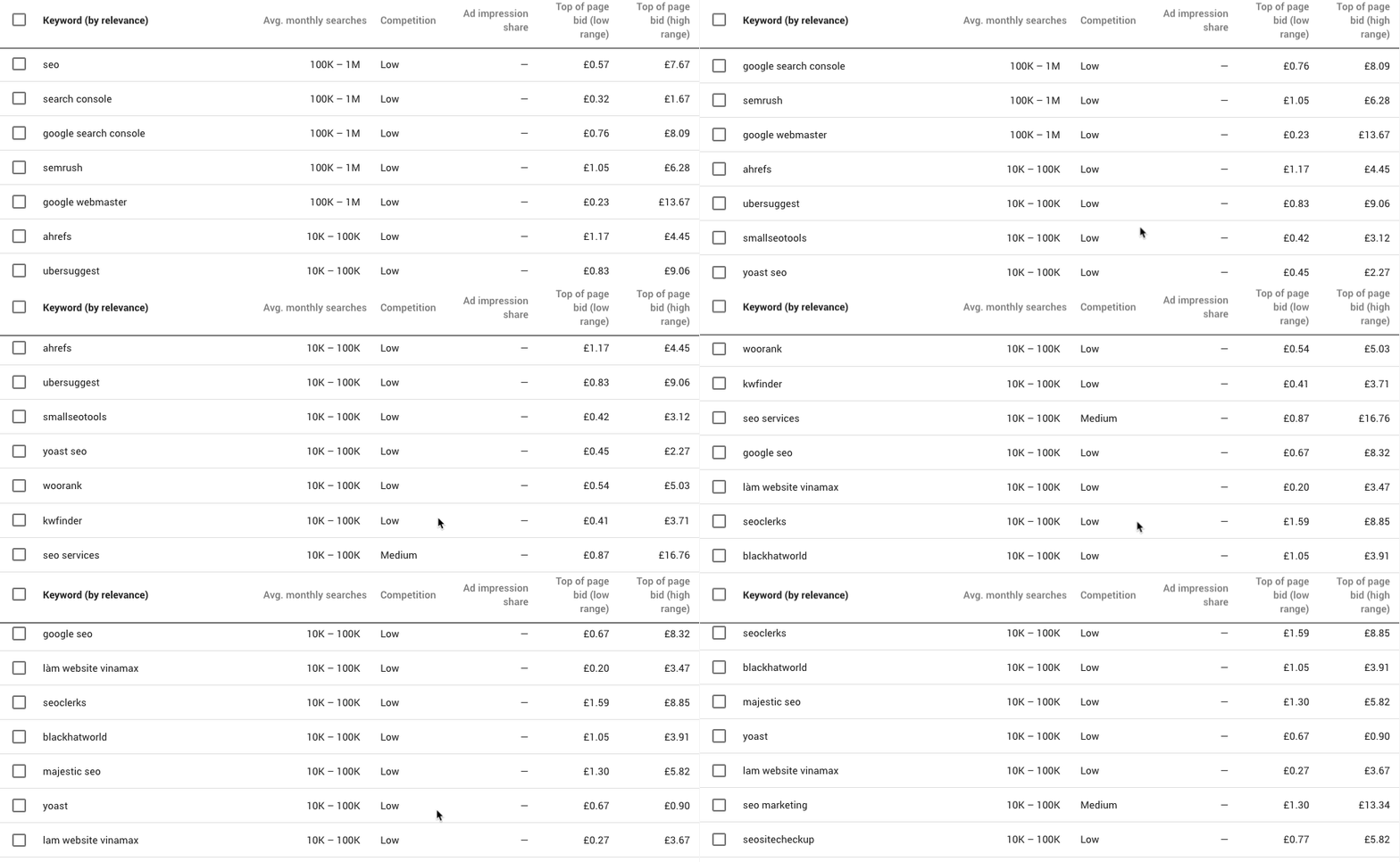
I will explain each of this feature in the blog later. For now, lets move to the second tool in the Google keywords planner: metrics
-
Get search volume and data
Metrics and forecast, the second important tool in the Google Keyword planner tool.

This tool is used to check the search volume of keywords.
Do you a list of keywords and want to know its forecast?
Just copy and paste the list of keywords in the empty field and hit the option “Get started”

It won’t give you any new keyword ideas but helps you to adjust your keyword listing.
Google keyword search volume is designed to get an idea of every keyword performance.
It shows the clicks, impression you can expect on each and every keyword.
As the tool is designed for running ads effectively, most of the metrics showed are related to Google ads For instance: CTR, CPC, costs and etc.
Note: The tool is effective only if you already have a long list of keywords and just want to check its metrics. In short this part of the tool will not help you in generating new keywords.

Step 3: Filter Keyword Listing Results
So you have got relevant keywords for your business.
Great! But you can’t use all of them.
It’s time to filter the less important ones.
Both the tools, we have just discussed will take you this page.

The filter process starts from here. let me break down each of the filter process to understand better.
1st Filter: At the top of the page
The first filter option is located on the top of the page. You can easily notice that on the top of the page there are three target options that can be used to filter the keywords. This includes:
a) location b) language c) search networks.

Let’s have a look at what these three things mean:
-
Locations:
This includes the countries that you are planning to market. So select the country where your target audience resides.

-
Language:
It refers to the language your target audience is speaking. Location and language will relate to each other. So for instance, if you select the location as “United states” then the language you will be targeting is English.

-
Search networks:
It means the platform you want to use to advertise. So here you choose that whether you want to advertise on “Google” or “Google search partners”.

Google search partners includes a network of different pages and networks that work with Google. Some of these pages are:
- Site directory pages
- Search result pages
- Google search sites like You tube, Google maps, shopping, Google images and groups etc
- Internal search results on sites like eBay, Amazon walmart etc.
Pro tip: I set this option on just “Google”
2nd Filter: At middle of the page
Just below the first filter option, you will find the next one.
Can you see the arrow pointing in this screenshot?

It’s your second filter. This feature gives a lot of targeting options.
You just need to click the option: “Add filter” and you will find many options that can make your keyword listing more focused and targeted.
Here’s the picture of what I mean:
 I simply clicked on “add filters” and the tool gave me a decent amount of filtering options.
It’s important to know the purpose of each filters to use them effectively and target better.
So let me quickly break down each of these filters for you:

-
Keyword Text
This is the tool which can give you a list of keywords that contain a particular phrase or keywords.

So what’s the benefit of this tool?
Suppose, you just launched a new line of weight loss supplements.
Now, wouldn’t you want the phrase “weight loss supplements” appears in all the keywords that tool will suggest?
Indeed, you would want! That’s when you can use the keyword planner tool.
Use the option of “contains” or “does not contain” to narrow your keyword listing.

Simply enter the phrase “Weight loss supplements” in the value section. The filter will ensure the all they keywords you get contains “weight loss supplements”.
-
Competition
This feature will show you the keywords based on their competitive score: “Low”, “Medium” and “High”

[Note: The keyword planner tool is designed only for Google ads. But it can be used for SEO purpose also. More on the below]
At this stage, I recommend leaving this option blank if you are looking keywords for organic search results.
-
Ad Impression share

This setting applies when you are running Google ads. So again, in the case of SEO, ad impression share option can be simply avoided.
-
Top of page bid (low range and high range)

This decides how much you are willing to spend to ensure your ad stays at the top of the page for a particular keyword.
You will find two options in this: high range and low range.

Top of page bid is an indicator of commercial intent.
so in PPC campaigns if you want to target for keywords that only potential users’ will search for then just set this to the particular amount of budget.
It’s good to set the low range. In this way, you can filter out keyword that are free from any commercial intent.
-
Exclude keywords in my account
It will exclude the keywords that you are presently bidding in your google ads account.
- Exclude Adult Ideas
This is pretty much clear!
-
Organic Average Position
This is a new feature introduced by Google. The tool now show you organic average position for the keywords. basically it tells you where you rank for each keyword in Google Search Engine Pages.
This feature has a lot of data to reveal if the site ranks or not. To access this data, the Google ads account and search console accounts need to be linked.
-
Organic impression share
Organic impression share is a good feature to determine how often your site appears when type for a search term in the organic listings.
Tip: ( Again to use this feature without any hassle, connect the search console account to Google ads.)
Step 4: Analyse keyword Ideas
Now you have understood about all the filters that aid you to narrow down your keyword listing.
Right?
This what you will get finally:
 But there’s one more step left. That’s the analysing part .
Once you have shortlisted the keywords that are suitable for your business, it’s time to analyse these keyword terms further.
Google keyword planner is supported by a feature that can help you analyse the keyword ideas better.
Let’s understand what each of these feature mean:
-
Keyword (By Relevance):
Once you type the words, phrase and URL, Google will show you a list of keywords that are most relevant.
-
Average monthly searches:
As the name suggests, Google keyword search volume will show you the frequency of searches that every keyword has. But remember, this is just a range and not an exact indicator of search volume.
Pro tip: [Be careful with the seasonal keywords. For instance, a seasonal term like Christmas tree decoration may get 50k searches in December and 100 searches in the month of April.]
But the keyword planner tool will say that the keyword will get 10K searches per month. This can mislead you, so watch out in the case of seasonal keywords.
Indeed the range is broad and misleading too. Here’s why:
look at these two keywords Average monthly searches:
 Both keywords (seo services and seo consultant) have Average monthly searches range between: 10k-100k.
What does this mean?
It means that both are of same value. Right? Well, no its not!
I have used Ahrefs keyword tool (paid ) to see the reality.

It’s clear that one of the keyword has high search query compared to the other. Knowing the exact number can make your choose the right keywords.
Does that mean you have to rely on paid tools only? Fortunately not!
We will tell you one small tip to unlock the exact number of search volume in google keywords planner tool. More on the later. For now let’s move on to the next feature.
-
Competition
The competition data is important. From the point of view of advertisers this feature show you the number of people bidding on the keyword.
Now, it is useful to see the keyword from SEO point of view.
For instance: High competitive keywords indicate that more people are running ads on these phrases.
Automatically, these keywords are more difficult to rank compare to others. So is there any fruitful information for SEOs too?
Well, Yes! Use these high competitive keywords to gain an edge over your competitors organically. using high competitive keywords might benefit some of you but not to all.
As some will find more success by using low competitive keywords. It all depends on your goals and chosen keywords.
How to Make the Most of the Google Keyword Planner Tool?
Using Google keyword planner tool is a pretty simple process. By now you are aware of all its features and settings.
But are you aware of the hacks that can use GKP tool effectively?
Hack No. 1: Get Keyword Ideas From Competitors
No matter in which domain you deal, there will always be some competitors that you need to watch.
Indeed, Google keyword planner works exponentially well for generating keyword ideas.
But can it help you to get an edge over your competitors too? Fortunately, the answer is “Yes”.
It does help you in this regard too. Google keyword planner works exponentially well in this regard.
Can you predict how can be this done? So here’s what GKP is capable of doing: it generates keyword suggestions from a URL.
In short, you can spy on your competitors and find out the keywords that are working for them. How to do this?
Simple, just past your competitors URLs in the empty space and the click on “entire site” from the drop-down.
So imagine you have a coffee cafe that offers a range of coffee’s. Now instead of using keywords related to coffee. Let’s add the Nescafe URL in the search bar.
Check this out:
 Now, you will get a whole lot of keywords that most of your competitors weren’t aware about.
Pro tip: [ add the keyword text filter so that you can skip the branded words]

These are powerful keywords that you can use while building strategies.
What’s more? You can use the URL in the Google keywords planner tool for many other things. For instance:
- Blogs
- Press releases
- other pages
- Influencers bio pages
- New stories etc..
In short, you can use this tool for any page data.
Hack No. 2: Keyword suggestions
This is an interesting filter to narrow down your search. So if you find keywords that are related to a particular brand, apply filter.
How to apply filter and exclude those keywords?
- Select “Add filter” option.
- Enter the keyword text & the brand name.
- Rinse and repeat this exercise to exclude multiple competitors.
Hack No. 3: Unlock the search volumes data:
We know Google doesn’t tell you the exact search volume. Instead, it gives you a range under the section of average monthly searches. But as we have seen earlier this can be misleading.
Sometimes keywords with varying search frequency may lie in the same range. Indeed knowing the exact search query can help you get the most.
STEP 1: Select the keywords of which you want the search volume. Can you see the Blue ticks on few keywords? Yes, those are the ones that I selected.

STEP 2: Now, select the “exact match” type when prompted

Step 3: Go to the keyword section on the left hand side of the page and you will find a page like this.

Step 4: Now drop down section that mentions “Your plan get 4K clicks…” . Now make sure the CPC is set on the max range. check this out.
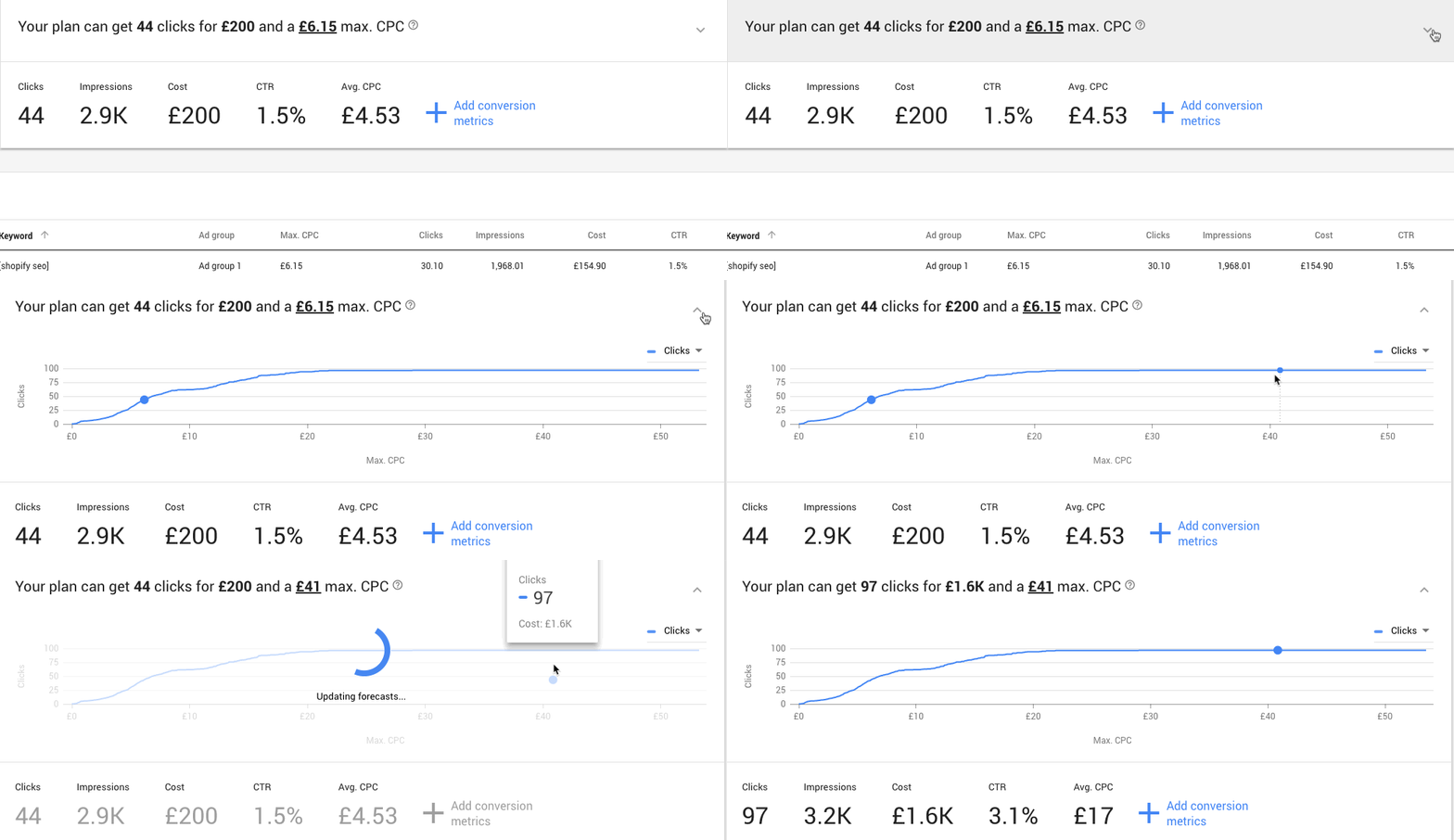
Step 5: check out the impression column. The number of impression will tell you the number of times your ad will be displayed for a particular keyword.

This is the data that requires your most attention. Remember, you set the data on max, that means the impression number should be quite near by to the actually number of search volume.
So that was a simple way to unlock the exact search volume data in Google keywords planner. Hope it will help you to pick the right set of keywords.
Hack No: 4 Questions that your User is thinking
Will it benefit if you could know what questions (in regard to products/ services you sell) coming in your audience’s mind?
Indeed! These questions can be super helpful for finding content ideas.
This is also a reason why the market is flooded with free keyword research tools. Answer the public is one such popular tool.
But with GKP you don’t need to use any additional tool. You just need one simple tip to make sure you can do this in the keyword planner.
- Just select “add filter” option.
- Enter “keyword text” + “contains”
- Add one of the following with each keyword text : who, what. Where, when and how.
- Now, repeat the process for 5 different suppositions.

This feature will give you some great ideas for developing content:
For instance, in this GKP tool, you get questions like:
- How to search using keywords
- keyword analysis
- How to find good keywords for SEO
- conduct keyword search on google
- How to determine search volume? Etc.
Now rinse and repeat this process using varied seed keywords to create a big list of question based queries.
Hack No. 5: Use suggested bid to find lucrative keywords
Having the right set of keywords is essential for any business. But how will you find out which keywords are more valuable and which are less?
Sure, you can do this manually. But trust me doing this manually is no fun as you might have hundreds and thousands of keywords. The best way? Use the feature “top of page bid” column.
But how can top of page bid help in this?
See, top of page bid shows you a range of keywords that advertisers have bid highest for. These keywords bidding is based on the location and search network settings.
Are you thinking this sounds like for Google ads?
Yes, you’re right but that doesn’t conclude that it isn’t useful for SEO.
In fact, this can be used to find keywords that are probably worth pursuing for SEO purpose.
How? Simple, top of the bid feature shows keywords that people are willing to spend their money.
Reason? Well, because these keywords are converting to sales. now if these keywords are converting the traffic to sales and leads.
Think how about trying to rank for these keywords? So one simple hack for this to go for:
Just click the column header on “top of page bid”.
Make sure the column is sorted in high to low way (this will ensure the most lucrative one will rise to the top.

Result? 9 out of 10 times this will give you keywords with high commercial intent. In short the ones that are worth trying.
Nine times out of 10, this will instantly unveil the keywords with commercial intent.
Hack No. 6: Target audience’s Based on a Device
Gone are the days when people used one search device to find the information.
Now people surf web on different types of devices, like smartphones, desktops, laptops, and tablets.
Different devices are used for different purposes. For instance, business work really happens on laptops or desktops.
But education related searches are mostly conducted on the smartphones.
Now, the important part is that both the devices comes in varying screen sizes.
It’s difficult to optimise your website for all the devices.
But that’s not the only thing you need to be concerned.
I have conducted one basic experiment and realised while my text was pretty readable on both the devices, it was desktop that took the lead.
The data revealed that most of the people who read my blogs do so on desktop.
Similarly you can check which page of your website is accessed more on which device.
To do this, simply add a keyword to your plan and click on “plan overview”.
Now, visit the device section, particularly impressions and pay attention to the impression data and it will reveal to you the data of impressions coming from each device category.
I used this feature to know which device the targeted audiences are using while browsing the Nescafe coffee website. Here’s the information the tool has showed me:

It’s clear that people are using their mobile phones to browse the nescafe website. but this data is not true for all the websites. Like for many business websites, it was the desktop that had the lead over the smart phone.
So if you want to capture audiences for a particular keyword used on a specific device, then simply follow the steps:
- Enter the URL or keyword and start the Search.

- Now select the keyword and click on “Add Keywords” option.

- Finally, click on “Plan overview” and check out the data for each device.

Conclusion
By now it’s clear that Google keyword planner is a powerful tool.
Not just that, but you also know How to use Google keyword planner for keyword research.
When used smartly, this tool can help you in crafting your solid SEO strategies. use this tool with some effective SEO techniques to reap greater benefits.
The tool not just show your high searched queries but also give valuable insights.
You can’t get these insights from any other keyword tool.
I recommend using this tool in your keyword research and generate accurate search volume estimations.

 The world is getting digital every now and again even for its trivial need.


 Step 1: Click on “Add new tracking”



 They say, if you have mastered the art of keyword research, you have mastered the art of effective targeting.












 2020 may very well become a crucial year for SEO due to several reasons.


